---
description: >-
In this tutorial we'll walk you through creating a straightforward payment
form with a payment element field. This form is designed to accept multiple
payment methods, Here's a step-by-step guide.
---
# Payment Elements Form (Pro)
{% hint style="danger" %}
In this sample, the Professional plan is required.
{% endhint %}
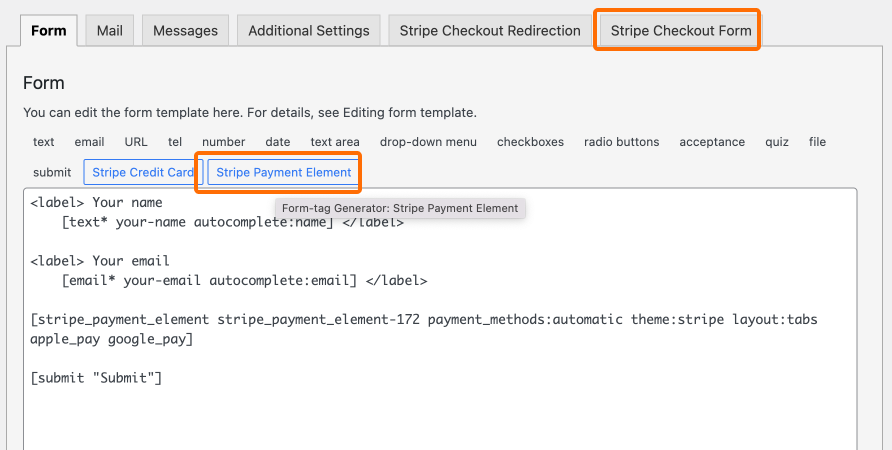
Navigate to Contact From -> Add New, we will use two parts:
* Stripe Payment Element Field
* Stripe Checkout Form tab
### Insert Stripe Payment Element Field
In the form editor, click the **Stripe Payment Element** button. Give a name and insert this field. Here we can see the shortcode **stripe\_payment\_element** is generated into the form.
Some examples:
{% code overflow="wrap" %}
```
[stripe_payment_element my-field payment_methods:automatic theme:stripe layout:tabs apple_pay google_pay]
```
{% endcode %}
{% code overflow="wrap" %}
```
[stripe_payment_element my-field payment_methods:card| payment_methods:sofort|google_pay|apple_pay theme:night layout:accordion apple_pay google_pay accordion_radio accordion_spaced]
```
{% endcode %}
#### **Payment Methods**
By default, the stripe checkout page will list all available payment methods in which your stripe account is activated. If you want only to allow some of them, you can choose them here.
#### Theme:
Three themes supported so far: Stripe, Night, Flat
#### Layout
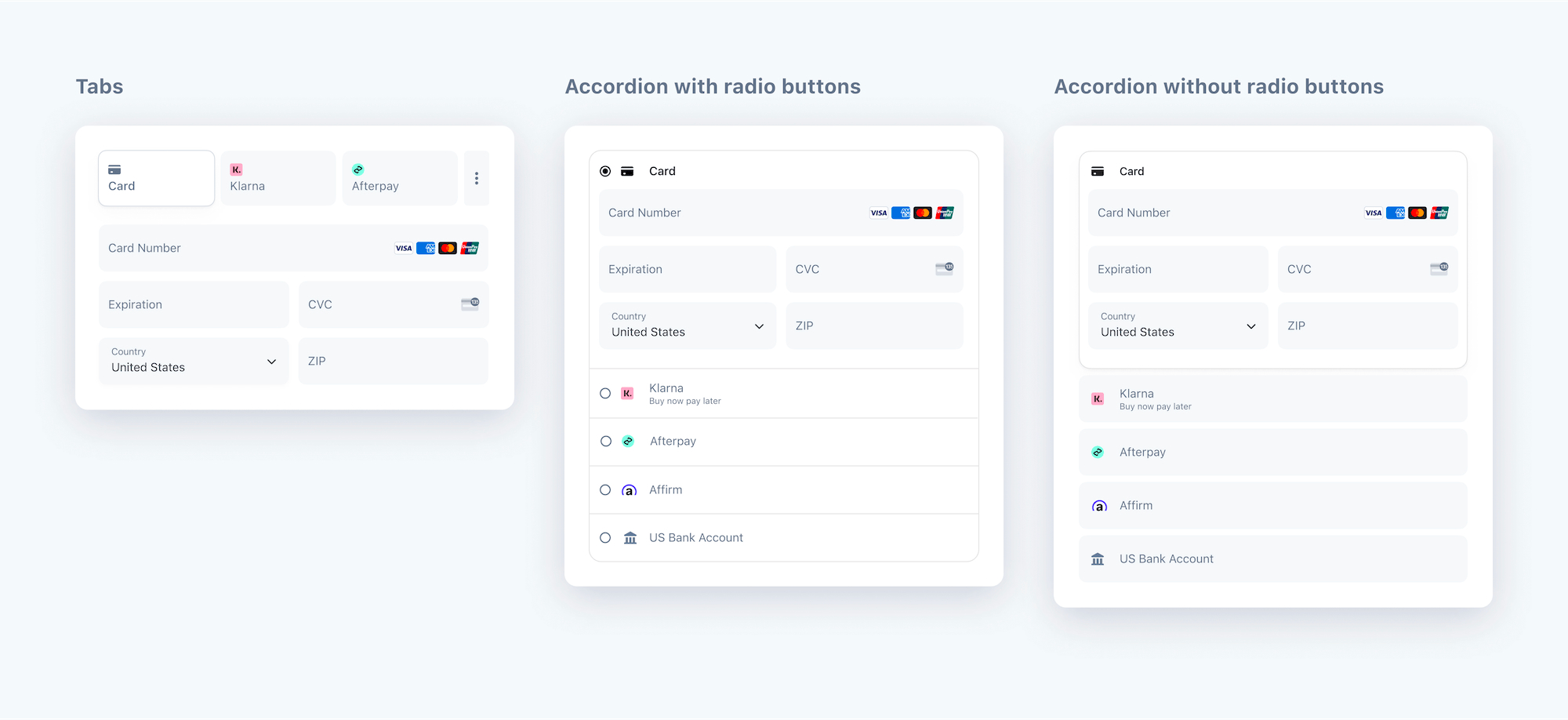
Customize the Payment Element’s layout to fit your checkout flow: Two layouts supported so far: **Tabs**, **Accordion**
#### Default Collapsed
Controls if the Payment Element renders in a collapsed state.
#### Include Radio (Only for Accordion layout)
#### Include Spaces (Only for Accordion layout)
### Checkout Configuration
After inserting this field, we can now set up the pricing under the **Stripe Checkout Form** tab.
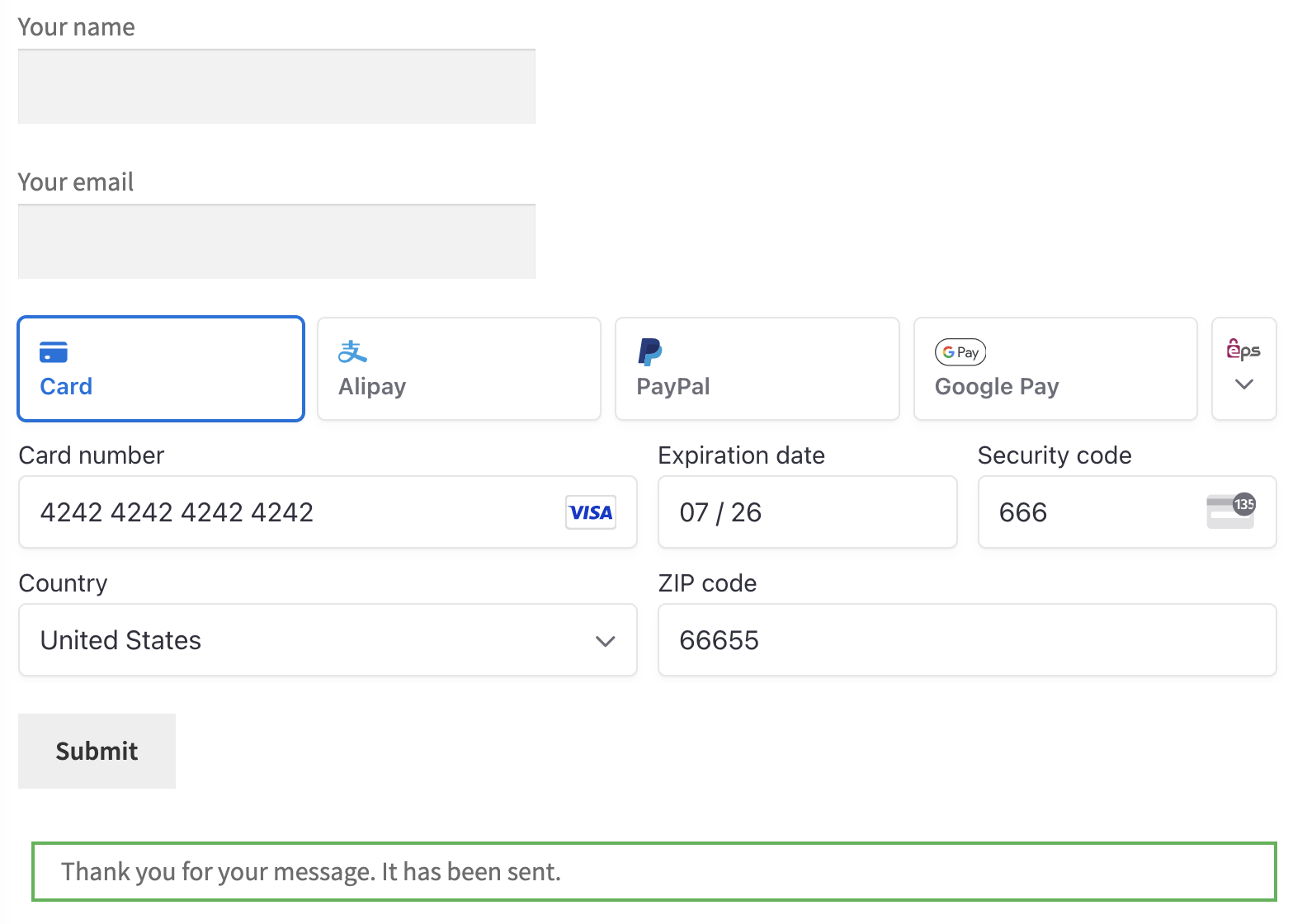
### Preview & Testing