---
description: >-
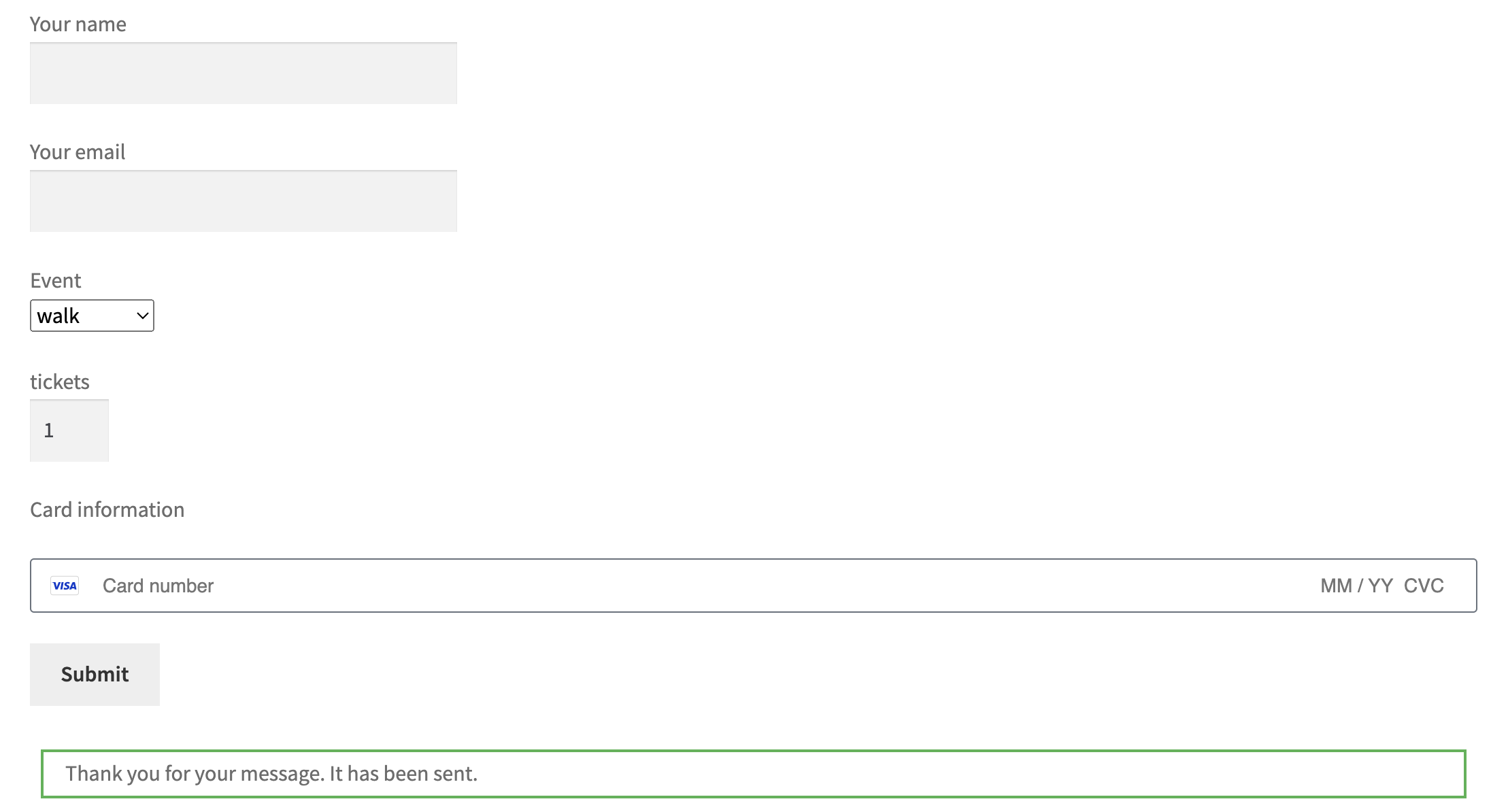
In this tutorial we'll walk you through creating a straightforward payment
form with a credit card field. This form is designed to facilitate event
registrations, Here's a step-by-step guide.
---
# Credit Card From (Pro)
{% hint style="info" %}
In this sample, the Professional plan is required.
{% endhint %}
Navigate to Contact From -> Add New, we should see two parts:
* Stripe Credit Card Field
* Stripe Checkout Form tab
### Build your Form with Credit Card Field
In the form editor, click the **Stripe Credit Card** button. Give a name and insert this field. Here we can see the shortcode **stripe\_credit\_card** is generated into the form.
```
[submit "Submit"]
```
### Checkout Configuration
After inserting the credit card field, we now can set up the pricing under **Stripe Checkout Form** tab.
Preview & Testing
.png?alt=media&token=2ce8663a-4ed3-4f50-9dbd-1f4e3caee487)